The Fast User Switching feature in Windows allows multiple users to share the same computer while keeping their individual sessions active, enabling quick transitions between accounts without needing to sign out or close applications.
How to Switch Between User Accounts in Windows
Users can switch accounts in Windows 10 and 11 using several methods:
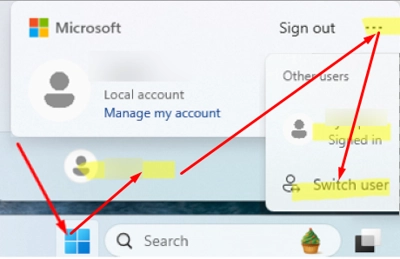
- From the Start Menu: Click
Start, select the current user account, and click the three dots (...) on the account card to view other active sessions or click on the Switch User button. - Windows Lock Screen: Press
Win + Lto lock the current session or use the commandrundll32.exe user32.dll,LockWorkStation. - Windows Security Screen: Access this by pressing
Ctrl + Alt + Del, where you can find the Switch User option. - Desktop Method: Minimize all applications and press
Alt + F4to open the Shut Down Windows dialog, which includes a switch user option. - Command Line: Use the
tsdisconcommand to disconnect the current session and access the user selection screen.
These methods allow users to switch accounts without ending active sessions, so a disconnected user can return to their work exactly where they left it.
Disabling Fast User Switching in Windows 11
While Windows does not allow a complete disabling of multiple local user sessions, an administrator can hide the Fast User Switching options in the GUI via Group Policy:
- Open the local Group Policy editor (
gpedit.msc). - Navigate to Computer Configuration > Administrative Templates > System > Logon.
- Enable the policy called Hide entry points for Fast User Switching.
- After updating the Group Policy settings, the user interface options for switching accounts will no longer be visible.
Alternatively, this can also be configured via the registry:
-
Create the parameter HideFastUserSwitching with a value of 1 using the following command:
reg add "HKLMSoftwareMicrosoftWindowsCurrentVersionPoliciesSystem" /v "HideFastUserSwitching" /t REG_DWORD /d "1" /f
Impact of Disabling Fast User Switching
When Fast User Switching is disabled:
- Other user accounts become hidden from the Start menu.
- All user accounts except the current one are hidden on the lock screen.
- The Switch User button is removed from the Windows Security screen.
Despite hiding these options, users can still switch accounts through commands like tsdiscon, which allows them to disconnect and reach the Windows sign-in screen to choose a different user.
For more information on Windows settings, you can visit the relevant resources on Group Policies or Windows User Management.