Rclone is an open-source command-line tool that allows users to copy, backup, and sync files between local computers and various cloud storage services like Google Drive, OneDrive, and Dropbox. This guide focuses on using Rclone on a Windows machine to automate backup transfers and synchronize files with Google Drive.
Installing Rclone on Windows and Connecting to Google Drive
To install Rclone, you can use the WinGet package manager or download it directly from the Rclone website. Here’s how to install it via WinGet:
winget install Rclone.RcloneAfter installation, run rclone config to start the configuration wizard. Follow these steps:
- Enter
nfor a new remote connection. - Name your connection, for instance,
gdrive. - Select Google Drive from the list of providers.
- Skip
client_idandclient_secretto use the default OAuth client. - Choose your desired access level. It’s advisable to select "Access to files created by rclone only" for security.
- Finish the setup by following prompts to authenticate through a web browser.
Rclone saves the configuration in a file located at:
C:UsersusernameAppDataRoamingrclonerclone.confBasic Rclone Commands
Here are some key commands to help you get started with Rclone:
-
List root directories:
rclone lsd gdrive: -
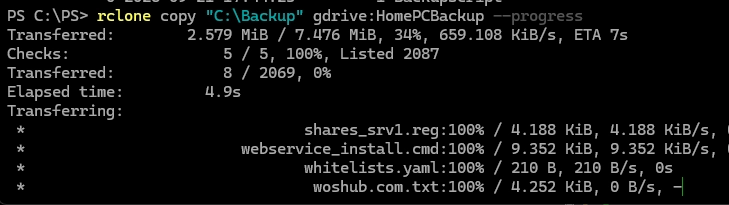
Copy a local folder to the cloud:
rclone copy "C:Backup" gdrive:HomePCBackup --progress -
View files in a cloud directory:
rclone lsf gdrive:HomePCBackup -
Delete a specific file from cloud storage:
rclone delete gdrive:HomePCBackup /whitelist.yaml --verbose --progress -
Clean up Google Drive trash:
rclone cleanup gdrive: -
Synchronize whole directories:
rclone sync "C:Backup" gdrive:HomePCBackup --progress -
Verify file integrity:
rclone check "C:Backup" gdrive:HomePCBackup --one-way
Mounting Google Drive in Windows
To make accessing Google Drive easier, you can mount it as a network drive using WinFSP. Install it via WinGet:
winget install WinFsp.WinFspThen mount Google Drive with the following command:
rclone mount gdrive: G:This will enable you to access Google Drive like any other folder in Windows File Explorer.
Automating Backups with PowerShell and Rclone
You can set up a PowerShell script for automated synchronization of local folders with Google Drive. The script should include logic to update files, move old files to an archive, and delete files older than 60 days.
Here is a basic structure for the script:
$Remote = "gdrive:"$Folders = @("C:Backup", "C:UserswoshubDocuments")$Dest = "BackupRclone/DesktopHome/current"$Archive = "BackupRclone/DesktopHome/archive"$Timestamp = Get-Date -Format "yyyy-MM-dd"$ExcludeFile = "$PSScriptRootexclude.txt"$HasErrors = $falseforeach ($F in $Folders) { if (Test-Path $F) { $FolderName = Split-Path $F -Leaf rclone sync $F "$Remote$Dest/$FolderName" --backup-dir "$Remote$Archive/$FolderName/$Timestamp" --exclude-from $ExcludeFile --progress if ($LastExitCode -ne 0) { $HasErrors = $true } }}if (-not $HasErrors) { rclone delete "$Remote$Archive" --min-age 60d --ignore-errors --progress rclone rmdirs "$Remote$Archive" --leave-root --progress} else { Write-Error "Error! Cannot cleanup files"}This script can be scheduled to run using Task Scheduler.
Configuring Cloud Backup Data Encryption
Rclone can encrypt files before uploading. To do so, configure a new remote with the crypt type using the command:
rclone configFollow the prompts to set up encryption, including creating a password for the salt.
Creating Your Own Google Drive Client ID
To avoid issues with Rclone’s shared client ID going away, create your own client ID in the Google Cloud Console:
- Create a new project.
- Enable the Google Drive API.
- Configure the OAuth consent screen and create a new OAuth client ID.
Following these steps ensures that your Rclone configuration remains functional even after Rclone’s default client ID is retired.
By using Rclone effectively, you can automate your file backups and sync with the cloud, ensuring your data is safe and easily accessible. For more detailed commands and options, refer to the official Rclone documentation.