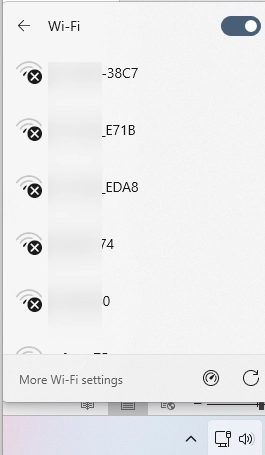
By default, Windows displays all available Wi-Fi networks to users, but there are methods to hide certain SSIDs (network names) or restrict connections to only approved networks. This article outlines how to configure Wi-Fi allowlists and blocklists using Windows’ built-in WLAN filtering feature.
Configuring WLAN Filters
The netsh command interface is utilized to manage wireless network filters. To begin, launch a command prompt or PowerShell with administrator privileges.
To view the Wi-Fi networks detected by your wireless adapter, use the following command:
netsh wlan show networksIf location services are not permitted, you might encounter an error indicating access denial. To resolve this, you must enable location services through the Windows settings, either by using the dedicated URI command or accessing the Privacy & Security settings manually.
Viewing Detailed Network Information
To obtain more detailed information about available networks, execute:
netsh wlan show networks mode=bssidThe WLAN AutoConfig service is responsible for listing available networks and allows for various filtering options.
WLAN Filtering Modes
Windows supports two main WLAN filtering modes:
- Blocklist (Blacklist): You specify which SSIDs to hide.
- Allowlist (Whitelist): You define the networks users can connect to, blocking all others.
Hiding Networks and Creating Alowlists
To hide a specific network from the list, add its SSID to the blocklist:
netsh wlan add filter permission=block ssid="Netgear_7259" networktype=infrastructureTo permit connections only to certain SSIDs, add them to the allowlist and block all others:
netsh wlan add filter permission=allow ssid="Xiaomi1234" networktype=infrastructure netsh wlan add filter permission=denyall networktype=infrastructureBy default, hidden networks will not be visible to users. You can change this behavior with the following command:
netsh wlan set blockednetworks display=showThis allows users to see detected Wi-Fi networks marked with an ‘X’ indicating they are blocked.
Managing WLAN Filters
You can list applied WLAN filters using:
netsh wlan show filtersTo remove a specific rule, use:
netsh wlan delete filter permission=allow ssid="Netgear_7259" networktype=infrastructureTo eliminate a blocking rule:
netsh wlan delete filter permission=denyall networktype=infrastructureCentral deployment of WLAN filters can also be implemented via Group Policy for streamlined management across multiple devices.
Security Note
It’s important to note that while WLAN filtering can help manage user connections, it shouldn’t be solely relied upon for securing networks, since SSIDs can easily be mimicked. Combining this filtering with additional security measures, such as hiding the Wi-Fi icon from the Windows sign-in screen, is advisable.