Fixing Duplicate Security Identifier (SID) Issues in Windows
In a recent update by Microsoft, strict uniqueness requirements for local machine Security Identifiers (SIDs) were enforced for Windows 11 25H2, 24H2, and Windows Server 2025. The updates mandate that each computer in a network must possess a unique SID to ensure proper network authentication. If computers share the same SID, network access—such as connecting to network shares—will be blocked.
This issue often arises when IT administrators clone Windows images for user computers and virtual environments without generalizing the SID using the Sysprep tool. As a result, any user attempting to authenticate to a computer with a duplicate SID will encounter a failure, often receiving an error message stating, “The username or password is incorrect,” despite entering valid credentials.
Problem Manifestation
Users may face several barriers, including:
- Inability to open shared folders or connect to network printers from a remote location.
- Failure to connect via Remote Desktop Protocol (RDP).
- Failures with WinRM (Windows Remote Management).
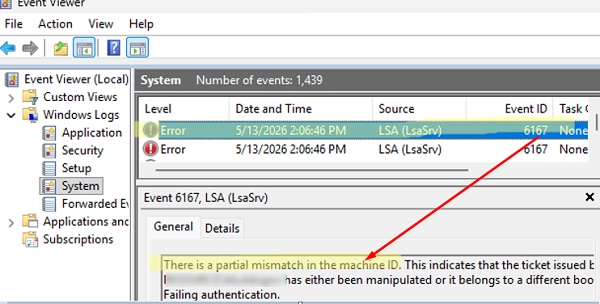
Event ID 6167 will log these authentication failures, indicating a partial mismatch in the machine ID, often linked to the SID duplication from cloning without Sysprep. As noted in Mark Russinovich’s 2009 article on machine SID duplication, issues can arise from multiple computers sharing the same local SID, presenting significant security risks, including unauthorized privilege escalation during system authentication.
Addressing SID Duplicates
To fix duplicate SIDs, IT professionals can consider the following approaches:
-
Using Sysprep: The recommended method involves using the built-in
Syspreputility with the/generalizeparameter before deploying a customized Windows image. This ensures a new, unique SID is generated upon the first boot of any computer running the image. -
Changing the Local Machine SID: Although not supported officially, third-party tools can regenerate the SID. However, significant caution should be exercised, as improper use may lead to critical system failures.
-
Bypassing SID Uniqueness Checks: As a temporary measure, IT administrators can disable the SID uniqueness requirement through Group Policy settings or registry edits. However, this fix is only valid until the end of 2027, after which Microsoft plans to enforce unique SIDs strictly.
Finding Local Machine SID
To check a machine’s local SID:You can utilize the PsGetsid tool from Microsoft or execute a PowerShell command to extract the SID from an existing local user account.
Example command:
(Get-LocalUser | Select-Object -First 1 -ExpandProperty SID).AccountDomainSid.ValueDetecting Duplicate SIDs in Active Directory
PowerShell scripts can help identify computers with duplicate SIDs. By appending the local SID to the "Description" field of computer accounts upon startup, administrators can easily spot duplicates in Active Directory using the Get-ADComputer cmdlet.
Changing the Security Identifier on Deployed Systems
For existing systems that need a SID reset without reinstalling Windows, third-party tools like SIDCHG can be considered, although their use comes with risks. Before proceeding with any changes to SIDs, it’s essential to account for potential disruptions, such as issues with file encryption (EFS) or trust relationships with Active Directory.
Conclusion
While the importance of unique SIDs is acknowledged for secure network connectivity, the steps to rectify duplicate SIDs vary in complexity. From Best practices involving Sysprep during image deployments to temporary workarounds for immediate issues, understanding how to manage SIDs is crucial in ensuring a secure and functional Windows environment.
For further information, consult the official Microsoft documentation on Sysprep and SID management.