Windows Sandbox on Windows 11: Enable, Configure, and Use
Windows Sandbox is a built-in feature in Windows 10 and 11 that creates a temporary and fully isolated environment for safely testing untrusted applications or handling suspicious files. Once closed, all changes made within the Sandbox are discarded, ensuring a fresh start each time it is launched. This feature leverages Windows virtualization and container-based isolation.
Requirements for Windows Sandbox
To use Windows Sandbox, your system must meet the following criteria:
- A 64-bit CPU with at least two cores
- Hardware virtualization must be enabled in the BIOS/UEFI
- Windows 11 Pro or Enterprise edition
- At least 4 GB of RAM (8 GB recommended) and 1 GB of free disk space (SSD preferred)
To enable the Sandbox, access the classic ‘Turn Windows features on or off’ app with the command:
optionalfeatures.exeAlternatively, you can enable it using PowerShell:
Enable-WindowsOptionalFeature -FeatureName "Containers-DisposableClientVM" -All -OnlineA reboot is necessary after installation.
Using Windows Sandbox
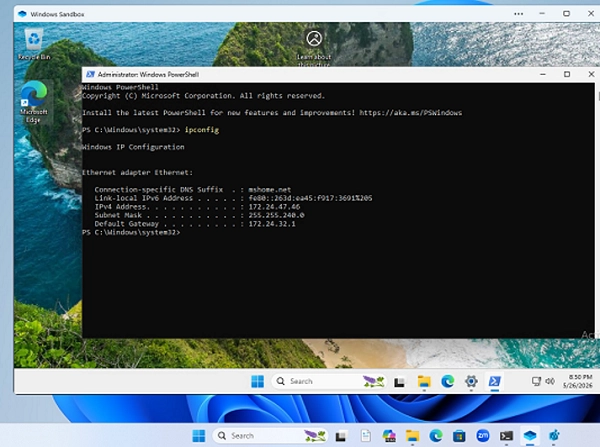
To launch Windows Sandbox, search for it in the Start menu or execute WindowsSandbox.exe. A new window displaying a clean Windows desktop will open, which is dynamically generated based on the host OS.
Currently, only one instance of the Sandbox can be running at a time. It allocates resources similar to the host system, using the same number of CPU cores and 4 GB of RAM, with network access enabled through a Hyper-V virtual switch.
You can access configuration options via the three-dot menu in the Sandbox title bar, allowing features like audio/video redirection and clipboard sharing.
Once the Sandbox window is closed, all changes are erased, accompanied by a warning about data loss.
Customizing the Windows Sandbox
Windows Sandbox settings can be managed through XML-formatted configuration files with a .WSB extension. These files allow you to define various options, such as:
- Networking access
- Mapped folders for sharing between host and Sandbox
- Logon commands to execute at startup
- Adjustable memory allocation
A sample configuration file might look as follows:
<Configuration> <Networking>Enable</Networking> <MemoryInMB>6144</MemoryInMB> <MappedFolders> <MappedFolder> <HostFolder>C:WSB</HostFolder> <SandboxFolder>C:HostShare</SandboxFolder> <ReadOnly>false</ReadOnly> </MappedFolder> </MappedFolders> <LogonCommand> <Command>powershell.exe -NoExit -ExecutionPolicy Bypass -File C:HostSharePrepareSandbox.ps1</Command> </LogonCommand></Configuration>To activate a Sandbox with a custom configuration, double-click the WSB file.
Command Line Management
Starting with Windows 11 24H2, you can use the wsb.exe command-line tool for managing Sandbox instances. Available commands include starting the Sandbox, listing active instances, executing commands within the Sandbox, and more.
For example, to start a Sandbox with specific memory settings:
wsb start --config "<Configuration><MemoryInMB>8192</MemoryInMB></Configuration>"Enabling Sandbox in Windows 11 Home Edition
While officially unsupported on Windows Home editions, Sandbox can potentially be enabled using a series of command line instructions. However, functionality may not be fully guaranteed.
For a safe environment to test untrusted applications and software solutions without jeopardizing the host system, Windows Sandbox is a practical choice, often much simpler than deploying a full virtual machine.