In this guide, we’ll explore how to enable and configure the Keyboard Filter feature in Windows to block specific keyboard shortcuts. This functionality is particularly useful in scenarios involving public computers, embedded devices in Kiosk Mode, and operator terminals.
The Keyboard Filter can prevent users from utilizing certain keyboard combinations that might disrupt system operations, such as closing applications or accessing system commands. For instance, users may be restricted from executing shortcuts like Ctrl+Alt+Del, Alt+F4, or Alt+Tab. It also restricts access to the Task Manager using Ctrl+Shift+Esc and prevents the use of clipboard shortcuts like Ctrl+C and Ctrl+V.
This feature can be applied to physical keyboards, the Windows on-screen keyboard, and touchscreen interfaces, although it is unavailable in Remote Desktop Protocol (RDP) sessions. The Keyboard Filter is supported only in the Enterprise, Education, IoT Enterprise, and LTSC editions of Windows, not in the Professional edition unless upgraded.
To install the Keyboard Filter, access the Windows Features dialog (optionalfeatures) and select it under Device Lockdown. Alternatively, you can enable it through PowerShell with the following command:
Enable-WindowsOptionalFeature -Online -FeatureName Client-KeyboardFilterAfter installation, restart your computer and ensure the Microsoft Keyboard Filter service (MsKeyboardFilter) is active and set to start automatically:
Set-Service -Name MsKeyboardFilter -StartupType Automatic -Status RunningConfiguring which keys or combinations to block involves editing the Windows registry. The registry path for predefined Windows shortcuts is HKEY_LOCAL_MACHINESOFTWAREMicrosoftWindows EmbeddedKeyboardFilter. By default, all shortcuts are allowed. To restrict a specific shortcut, such as Alt+Tab, modify its value:
reg add "HKLMSOFTWAREMicrosoftWindows EmbeddedKeyboardFilter" /v "Alt+Tab" /t REG_SZ /d "Blocked" /fAfter making any changes, a restart or service refresh is necessary for the settings to take effect. Attempts to use blocked shortcuts will result in no response from the system.
Additional registry settings enable further customization of the Keyboard Filter:
- DisableKeyboardFilterForAdministrators: Set to
1to allow local administrators to bypass restrictions (default is0). - ForceOffAccessibility: Set to
1to block access to Windows accessibility features such as Sticky Keys and Magnifier. - BreakoutKeyScanCode: Specifies the key for logging out, with
5Brepresenting the left Windows key by default.
You can also manage predefined keyboard shortcuts via Windows Management Instrumentation (WMI). A PowerShell function to adjust predefined key blocking could look like this:
function Disable-Predefined-Key { param ( [Parameter(Mandatory=$true)][string]$Id, [Parameter(Mandatory=$true)][bool]$State ) $key = Get-CimInstance -Namespace "rootstandardcimv2embedded" -ClassName "WEKF_PredefinedKey" -Filter "Id = '$Id'" if ($key) { $key.Enabled = $State Set-CimInstance -CimInstance $key Write-Host "Keyboard filter set to $State for: $Id" -ForegroundColor Green } else { Write-Error "$Id is not a valid predefined key." }}To block or allow shortcuts with this function, you simply call:
To block:
Disable-KeyboardKey -Id "Alt+F4" -State 1To allow:
Disable-KeyboardKey -Id "Alt+F4" -State 0Additionally, you can create custom keyboard filters by adding values under a subkey called CustomFilters in the KeyboardFilter registry key. For example, to block Ctrl+C and Ctrl+V, use:
reg add "HKLMSOFTWAREMicrosoftWindows EmbeddedKeyboardFilterCustomFilters" /v "Ctrl+C" /t REG_SZ /d "Blocked" /freg add "HKLMSOFTWAREMicrosoftWindows EmbeddedKeyboardFilterCustomFilters" /v "Ctrl+V" /t REG_SZ /d "Blocked" /fYou can also block specific keys directly by specifying their hexadecimal scan code. For instance, to block the left Windows key:
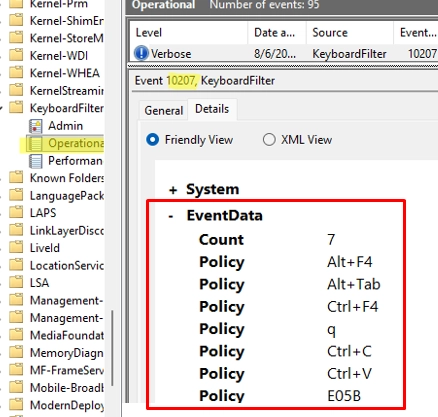
reg add "HKLMSOFTWAREMicrosoftWindows EmbeddedKeyboardFilterCustomScancodes" /v "E05B" /t REG_SZ /d "Blocked" /fMonitoring the Keyboard Filter policy changes is possible via the Event Viewer, specifically under Application and Services Logs → Microsoft → Windows → KeyboardFilter → Operational. Here, you can find logs with Event ID 10207, indicating the enabled policies.
In summary, the Keyboard Filter serves as an effective tool for managing keyboard input, preventing unwanted shortcuts, and enhancing control over user interactions with the system.