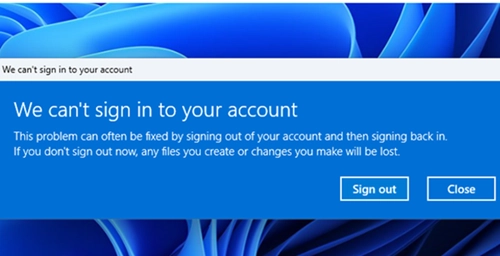
A temporary Windows profile is loaded when the User Profile Service can’t access or read a user’s normal profile. Windows may show a “We can’t sign in to your account” warning and a blank desktop. Files and settings saved in the temporary profile are lost when you sign out or restart, so avoid saving anything there.
Confirm that Windows loaded a temporary profile
Open PowerShell and check the profile directory:
$env:USERPROFILEA path containing TEMP, such as C:UsersTEMP.COMPUTERNAME, usually indicates that Windows signed you in with a temporary profile.
To investigate why the normal profile failed to load, open Event Viewer (eventvwr.msc), go to Windows Logs > System, and look for errors from User Profile Service. Common event IDs include 1502, 1508, and 1511.
Repair the profile registry entry
A common cause is an incorrect profile path or duplicate entries for the same user in the registry. Before editing the registry, sign in with an administrator account and make sure you know which profile folder contains the user’s data.
Find the user’s SID:
whoami /userList the profiles registered on the computer:
Get-CimInstance Win32_UserProfile | Select-Object LocalPath, Loaded, SIDCheck whether the expected profile directory exists. For example:
Test-Path -Path "C:Userswinos"Open Registry Editor by running regedit.exe, then navigate to:
HKEY_LOCAL_MACHINESOFTWAREMicrosoftWindows NTCurrentVersionProfileListFind the subkeys named with the user’s SID. If there are two entries for the same SID and one ends in .bak, the .bak entry may point to the normal profile while the other points to a temporary one. Check the ProfileImagePath value in each entry to confirm the correct folder.
If you have verified which entry and folder are correct:
- Rename the entry pointing to the temporary profile by adding a
.tmpsuffix. - Remove
.bakfrom the entry pointing to the correct profile. - Set that entry’s
ProfileImagePathto the correct profile folder. - Set its
Statevalue to0. IfRefCountexists, set it to0as well; do not create it if it is absent. - Close Registry Editor and restart Windows.
Be careful when editing the registry. Incorrect changes can prevent Windows from loading the profile.
Check the profile files and disk
If the registry path is correct but sign-in still fails, check that the profile’s NTUSER.DAT file exists and is readable:
Test-Path -Path "C:UserswinosNTUSER.DAT"[System.IO.File]::GetAccessControl("C:UserswinosNTUSER.DAT") | Format-ListNTUSER.DAT stores user-specific registry settings. You can test whether Windows can load it by running these commands in an elevated Command Prompt:
reg load HKUDefault C:UserswinosNTUSER.DATreg unload HKUDefaultIf loading the file fails, or you suspect disk or file-system corruption, schedule a disk check:
chkdsk /f /r C:Windows may need to run the check at the next restart because the system drive is in use.
Other possible fixes
- Restore a deleted profile folder. Try recovering it from a System Restore point or use file-recovery software. Recovery from an SSD may not be possible if TRIM has removed the data.
- Create a fresh profile. Remove the affected user’s profile entries under
ProfileList, then sign in again so Windows creates a new profile. Copy personal files from the old folder afterward. - Create a new local account. If the existing profile cannot be recovered, create another account and copy personal files such as Desktop, Documents, and Downloads. Avoid copying the entire
AppDatafolder. - Check whether security or backup software is locking the profile. Antivirus, backup tools, or other third-party software may prevent Windows from accessing
NTUSER.DAT. Review their settings and schedules. - Remove an unnecessary profile through System Properties. Run
control.exe sysdm.cpl,3, open the Advanced tab, select Settings under User Profiles, and remove the unwanted profile. This permanently deletes the selected profile’s files. - For Remote Desktop Services, check profile storage locks. A user profile disk or FSLogix VHDX may still be open on another host or by another process. Check open files on the server storing the profile and disconnect any stale sessions.
If Windows cannot sign in even with a temporary profile, see the User Profile Service sign-in troubleshooting guide.