We recently observed an issue related to the new Windows UEFI CA 2023 Secure Boot certificates deployed by Microsoft. Users returning from vacation found that their laptops failed to boot, displaying the error:
Secure Boot ViolationInvalid signature detected. Check Secure Boot Policy in Setup.Background on the Issue
The problem arose on devices where the Windows UEFI CA 2023 certificates had been installed and the Windows bootloader had been updated to a version signed with these certificates. If the Windows UEFI CA 2023 certificate is absent from the Secure Boot signature database stored in the UEFI NVRAM, the firmware is unable to validate the signature of the updated Windows bootloader (bootmgfw.efi), leading to the boot failure.
Several factors might contribute to this situation:
- Manual deletion of Secure Boot certificates from the UEFI firmware.
- Updates or factory resets of the UEFI firmware.
- Clearing of the UEFI NVRAM content, often caused by a CMOS battery failure. This specifically impacted some Razer Blade laptops.
Symptoms of the Problem
When Secure Boot is active in UEFI settings, the system will fail to launch the Windows Boot Manager, showing an error like:
Invalid Signature Detected. Check Secure Boot Policy in Setup.If Secure Boot is disabled, Windows may boot normally, but this compromises the security of the boot process and is not a long-term solution.
Understanding Windows UEFI CA 2023 Certificates
In early 2026, Microsoft began deploying the Windows UEFI CA 2023 certificates as part of cumulative updates. These certificates go into the Secure Boot database in the UEFI firmware’s non-volatile memory. Simultaneously, Microsoft replaced the Windows Boot Manager file with a new version signed using the Windows UEFI CA 2023 certificate.
When Secure Boot is enabled, the UEFI firmware checks the digital signature of the Windows bootloader before confirming it as safe to launch. Issues arise when the bootloader has been updated, but the corresponding certificate is missing from the Secure Boot database.
Resolving the UEFI Signature Validation Error
To fix this issue, options include:
-
Disable Secure Boot: Not recommended due to security vulnerabilities.
-
Update UEFI firmware: Seek an update from your hardware manufacturer, which may be a lengthy process.
-
Utilize Microsoft’s Secure Boot Recovery tool: This method is the simplest and safest for importing the new certificates into the UEFI firmware.
Using SecureBootRecovery.efi
To restore the Windows UEFI CA 2023 certificates into the UEFI NVRAM, follow these steps:
-
Disable Secure Boot in UEFI settings, then boot into Windows.
-
Verify the absence of the new certificate with PowerShell:
[System.Text.Encoding]::ASCII.GetString((Get-SecureBootUEFI -Name db).Bytes) -match "Windows UEFI CA 2023" -
Check the signature of the Windows bootloader using PowerShell:
Get-PfxCertificate -FilePath "e:EFImicrosoftbootbootmgfw.efi" | Format-List Subject, Issuer -
Prepare a USB flash drive by clearing it, creating a FAT32 partition, and formatting.
-
Create the necessary directory structure on the USB:
mkdir g:EFIBOOT -Force -
Copy
SecureBootRecovery.efifromC:WindowsBootEFIto the USB drive. -
Rename the copied file:
ren .SecureBootRecovery.efi bootx64.efi -
With the USB set as the primary boot device, boot from it.
-
The UEFI will execute
bootx64.efi, checking and updating the Secure Boot certificate database. -
On completion, restart your device, remove the USB, and set Windows Boot Manager as the primary boot option.
-
Confirm the successful installation of the new certificates with PowerShell.
Following these steps will enable the UEFI firmware to trust the updated Windows bootloader, allowing a successful boot with Secure Boot enabled.
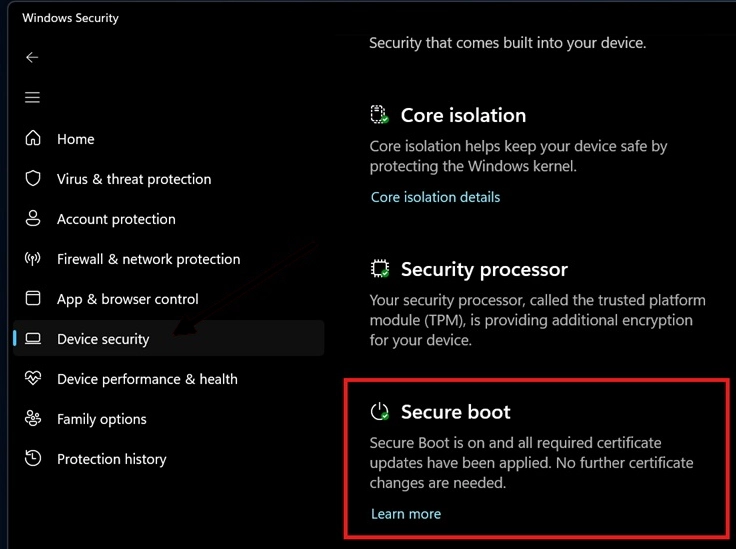
The message confirming a successful configuration should appear in Windows Security:
Secure Boot is on and all required certificate updates have been applied. No further certificate changes are needed.