CrowdSec is an open-source security engine designed to analyze server logs and detect suspicious activity such as password brute-forcing and port scanning. Originally developed for Linux systems, it is now available for Windows, providing effective protection against threats like RDP and SMB brute-force attacks.
Installing CrowdSec Security Engine on Windows
To set up CrowdSec on Windows, follow these prerequisites:
-
Install .NET 6.0 Desktop Runtime: Utilize the WinGet package manager for the installation:
winget install Microsoft.DotNet.DesktopRuntime.6 -
Ensure TCP port 8080 is free: Verify that this port is not used by other applications.
-
Enable Windows Logon Audit Policy: Open
secpol.msc, go to Advanced Audit Policy Configuration -> Audit Policies -> Logon/Logoff. Check the Audit Logon policy for Failure. -
Configuration file adjustments: Modify the default configuration to use
127.0.0.1instead oflocalhostto prevent IPv6 issues during local API interactions.
Next, you can install CrowdSec:
winget install -e --id CrowdSecurity.CrowdSecThen install the crowdsec-firewall-bouncer to manage automatic blocking:
winget install -e --id CrowdSecurity.CrowdSecWindowsFirewallBouncerAfter installations, start the services:
Get-Service Crowdsec, cs-windows-firewall-bouncer | Start-Service -VerboseConfiguring CrowdSec
Check that the firewall bouncer is registered:
cscli bouncers listNext, ensure the Windows collection is installed, which includes valuable scenarios for defending against attacks:
cscli collections install crowdsecurity/windowscscli scenarios install crowdsecurity/windows-bfUsing CrowdSec for Attack Prevention
Once installed, CrowdSec will automatically monitor defined security logs for failed log-in events. You can simulate failed login attempts to observe how the system reacts:
cscli decisions listTo check alerts or list all blocked IP addresses:
cscli alerts listTo manually manage IP addresses, you can add or remove entries from the blocklist:
cscli decisions delete --ip 192.168.123.4cscli decisions add --ip 192.168.123.4 --reason "manually BAN IP"For real-time logging updates, use PowerShell:
Get-Content C:ProgramDataCrowdSeclogcrowdsec.log -Wait -Tail 30Customizing Detection Settings
Adjust the detection threshold and conditions by editing the scenario file:
-
Modify brute force detection thresholds in
C:ProgramDataCrowdSecconfigscenarioswindows-bf.yaml:capacity: 5leakspeed: 10s -
Specify IP blacklisting duration in
C:ProgramDataCrowdSecconfigprofiles.yaml:Duration: 4h
Whitelisting Trusted IPs
To exempt certain IP addresses from being blocked by CrowdSec, create a whitelists.yaml file and add the relevant configurations:
name: crowdsecurity/whitelistsdescription: "Whitelist my office IPs"whitelist: reason: "CORP trusted IP addresses" ip: - "192.168.123.1" cidr: - "192.168.15.0/24"Conclusion
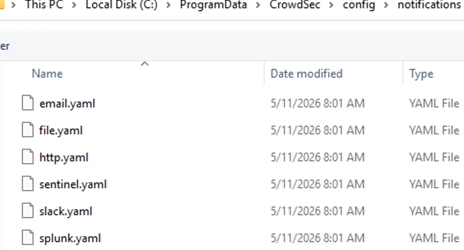
CrowdSec’s capabilities extend beyond brute force detection, offering features to protect against port scans and manage web server logs. It also provides integration with various notification methods like email and Slack for alerting purposes. For advanced network protection, you can register for the CrowdSec Cloud Console to gain insights and manage global block lists effectively.
For further details, refer to the official CrowdSec documentation at app.crowdsec.net.