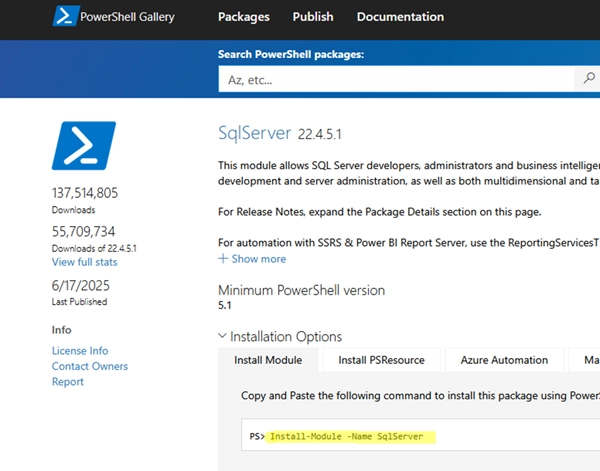
PowerShell modules are collections of cmdlets for managing Windows components, server roles, cloud services, and other systems. You can install them from the PowerShell Gallery or other repositories, then update or remove them as needed.
Manage PowerShell repositories
List the repositories registered on a computer:
Get-PSRepositoryTo add a repository hosted in a shared network folder:
Register-PSRepository -Name myCORPPSRepo ` -SourceLocation \mun-man01PSRepo ` -InstallationPolicy TrustedRemove a repository with:
Unregister-PSRepository myCORPPSRepoThe PowerShell Gallery is not trusted by default, so PowerShell may prompt you before installing a module from it. To mark it as trusted:
Set-PSRepository -Name PSGallery -InstallationPolicy TrustedIf the default gallery was removed, restore it with:
Register-PSRepository -DefaultInstall modules from a repository
Search registered repositories for a module. For example:
Find-Module *BIOS*Install a module by name:
Install-Module DellBIOSProviderUseful options include:
-Repositoryto choose the source repository.-RequiredVersionto specify a particular version.-Scope CurrentUserto install for your account only;-Scope AllUsersinstalls for all users.-Forceto install without confirmation prompts.
View third-party modules installed on the computer:
Get-InstalledModuleFor additional details:
Get-InstalledModule | Select Name, Version, PublishedDate, InstalledDate, InstalledLocationWindows also includes built-in modules, commonly stored in C:WindowsSystem32WindowsPowerShellv1.0Modules. List all available modules with:
Get-Module -ListAvailableImport a module into the current session:
Import-Module DellBIOSProviderPowerShell can also load modules automatically when you first run one of their cmdlets. The $env:PSModulePath environment variable identifies the directories PowerShell searches for modules. Display its contents with:
$env:PSModulePath -split ";"To see modules already loaded in the current session, run:
Get-ModuleIf a module cannot be loaded because script execution is disabled, review the machine’s execution policy. One option for allowing locally created scripts and signed scripts from other sources is:
Set-ExecutionPolicy RemoteSignedCheck the commands provided by a module with:
Get-Command -Module DellBIOSProviderMultiple versions of a module can be installed at once. List them with:
Get-Module PSWindowsUpdate -ListAvailableInstall modules manually or offline
For computers without access to the online repository, save a module on an internet-connected computer:
Save-Module -Name PSWindowsUpdate -Path C:TempCopy the module folder to the offline computer’s module directory. Alternatively, download its .nupkg package, place it in a local folder, and register that folder as a repository:
Register-PSRepository -Name myLocalPSRepo ` -SourceLocation C:PSRepo ` -InstallationPolicy TrustedInstall-Module PSWindowsUpdate -Repository myLocalPSRepoSee the guide to installing PowerShell modules offline.
Update modules
Update a specific module to the latest version in its repository:
Update-Module -Name PSWindowsUpdateUpdate all installed modules:
Update-Module -ForceAfter an update, reload the module or restart the PowerShell session:
Import-Module -Name PSWindowsUpdate -ForceRemove modules
Uninstall a module with:
Uninstall-Module -Name PSWindowsUpdateIf it is loaded in the current session, remove it from memory first:
Remove-Module -Name PSWindowsUpdateUninstall-Module -Name PSWindowsUpdate -ForceMore details are available in this guide to removing PowerShell modules.
Useful modules for administrators
Commonly used modules include:
- NetSecurity — manage Windows Firewall rules.
- ScheduledTasks — manage scheduled tasks.
- RSAT-AD-PowerShell — work with Active Directory.
- PSWindowsUpdate — manage Windows updates.
- CredentialManager — work with Windows Credential Manager.
- SimplySql — connect to databases such as MySQL, PostgreSQL, Oracle, SQL Server, and SQLite.
- VMware.PowerCLI — administer VMware environments.
- WinGet — manage Windows software packages.