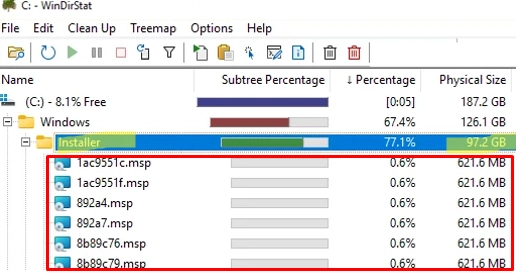
The C:WindowsInstaller folder can grow substantially over time, sometimes consuming tens of gigabytes. It contains cached Windows Installer packages that Windows needs to repair, modify, update, or uninstall certain applications. Because deleting these files indiscriminately can break those operations, cleanup should be done carefully.
What the Windows Installer folder contains
When an MSI-based application is installed, the Windows Installer service (msiserver) stores a copy of its .MSI package in the hidden %windir%Installer folder. The file is renamed to a seemingly random name, such as 1db12be7.msi. The folder can also contain .MSP files used for software updates.
Windows uses these cached packages when an application needs to be repaired, modified, or removed—even if the original installation files are no longer available. If a required cached package has been deleted, uninstalling the application may fail and prompt for the original installer, sometimes with error 1612.
For that reason, do not delete files from this folder at random. When an application is removed through Windows Settings, Programs and Features, or msiexec, its associated cached files are normally removed automatically.
Identify files that may be safe to remove
Some files can become orphaned—for example, after an interrupted installation or removal, or when a third-party uninstaller is used. Identifying them can be difficult because their filenames do not reveal which application they belong to.
To view package details in File Explorer:
- Open
%windir%Installerand switch to Details view. - Right-click a column heading and choose More.
- Add the Authors and Subject columns.
- Use the displayed metadata to identify the associated software.
If you can confirm that an application has been removed or updated and no longer needs a particular package, its files may be candidates for cleanup. Verify carefully before removing anything.
Find orphaned packages with PowerShell
The Windows Installer database keeps track of cached packages associated with registered applications. A package that exists in the Installer folder but is not registered may be orphaned.
The following PowerShell script compares the files in the folder with the Windows Installer database and lists potential orphaned .MSI and .MSP files. It only reports files; it does not delete them.
Download the script, then run it in PowerShell:
Set-ExecutionPolicy RemoteSigned -Scope Process.Get-OrphanedMSIInstallers.ps1Treat the results as candidates rather than guaranteed safe deletions. It is prudent to move files to another drive first and test that your applications still install, update, repair, and uninstall correctly.
Another option is PatchCleaner, a graphical utility that scans for unreferenced installer packages and can move or delete them. Moving files is the safer choice. PatchCleaner excludes Adobe Acrobat packages by default to help avoid disrupting Acrobat’s update mechanism.
Move the folder to another drive
If you need to retain the cached packages but want to free space on the system drive, you can move the folder and create a directory junction at its original location. This requires an NTFS volume and should be tested carefully.
For example, to move the contents from C:WindowsInstaller to E:WindowsInstaller, run these commands from an elevated Command Prompt:
robocopy C:WindowsInstaller E:WindowsInstaller /E /MOVE /COPYALL /DCOPY:DAT /XJrmdir C:WindowsInstallermklink /J C:WindowsInstaller E:WindowsInstallerRestart Windows, then test installing or uninstalling an MSI-based application to confirm that Windows Installer can still access the packages.