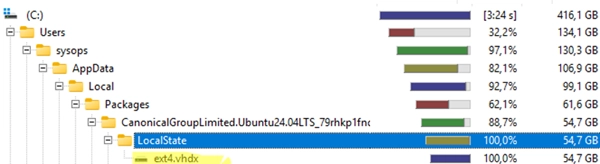
WSL2 and Docker Desktop store their data in dynamically expanding VHDX files. These files grow as data is added, but deleting files inside Linux or Docker does not automatically reduce the space they occupy on the Windows drive.
You can reclaim that space by cleaning up unused data and compacting the VHDX file.
Compact a WSL2 virtual disk
First, check how much space is in use inside the Linux distribution:
df -h /To find the distribution name, run this in Windows:
wsl.exe --list --verboseYou can then locate its VHDX file using PowerShell. Replace Ubuntu-24.04 with your distribution’s name:
$wsl2distro = 'Ubuntu-24.04'$VHDX = (Get-ChildItem -Path HKCU:SoftwareMicrosoftWindowsCurrentVersionLxss | Where-Object { $_.GetValue("DistributionName") -eq $wsl2distro }).GetValue("BasePath") + "ext4.vhdx"Before compacting the disk, remove unnecessary files from the distribution. The ncdu utility can help identify large files and directories:
sudo apt-get install ncdusudo ncdu --exclude /mntYou can also remove unused packages and cached files on Ubuntu or Debian:
sudo apt-get update && sudo apt-get autoremove -y && sudo apt-get cleanShut down WSL before compacting the VHDX:
wsl --shutdownwsl.exe --list --verboseMake sure all distributions are stopped. Then use either Optimize-VHD or DiskPart to compact the file.
With Optimize-VHD:
Optimize-VHD -Path "C:pathtoext4.vhdx" -Mode FullThe Optimize-VHD cmdlet requires the Hyper-V management tools, which are available on Windows Pro and Enterprise editions.
Alternatively, use DiskPart:
diskpartselect vdisk file="C:pathtoext4.vhdx"attach vdisk readonlycompact vdiskdetach vdiskexitAfterward, check the VHDX file’s size on the Windows drive. It should be closer to the amount of data actually stored in the Linux distribution. You can also move a WSL distribution to another drive if you want to free space on the system volume.
Reclaim Docker Desktop disk space
Docker Desktop also stores data in a WSL2 VHDX file. Check Docker’s disk usage with:
docker system dfRemove unused Docker images and other data first:
docker system prune -aDocker’s WSL data is typically stored at:
%LOCALAPPDATA%Dockerwsldiskdocker_data.vhdxClose Docker Desktop, shut down WSL, then compact the file with one of the methods above. For example:
wsl --shutdownOptimize-VHD -Path "$env:LOCALAPPDATADockerwsldiskdocker_data.vhdx" -Mode FullAutomatic space reclamation with sparse mode
WSL2 has an experimental sparse VHD feature that can return unused space to Windows as data is deleted. You can enable it for a distribution with:
wsl --manage Ubuntu-24.04 --set-sparse true --allow-unsafeThe --allow-unsafe option is required when WSL warns that sparse VHD support may cause data corruption. Because the feature is experimental and carries a risk to both the Windows NTFS volume and the guest ext4 filesystem, it is not recommended for production systems.
You can also enable sparse mode in %UserProfile%.wslconfig:
[experimental]sparseVhd=trueCompact the VHDX with DiskPart or Optimize-VHD before enabling sparse mode. Afterward, those tools can no longer be used to compact that file.