In Windows Server 2012 R2 and earlier versions with the Remote Desktop Services (RDS) role, you had the ability to configure a program to launch automatically when a user logged into their RDP session. This was done through the user’s profile settings, particularly in the Environment tab, using the Start the following program at logon option. The application would replace the default Windows Explorer shell (explorer.exe), and once the remote user closed the program, their RDS session would terminate.
However, starting from Windows Server 2016 and later, this functionality has been disabled by default. Users logging in are taken to a full remote desktop session, and any specified autostart programs in the user profile will merely be ignored. This change stems from a modification in the behavior of the Remote Connection Manager (RCM), which no longer retrieves user settings from the domain controller, affecting the autostart program, roaming profile path, and home folder.
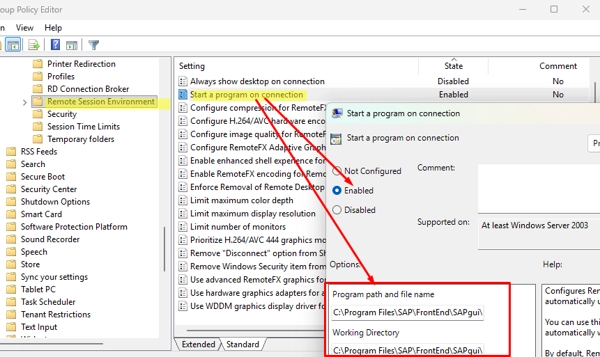
To address this, Microsoft suggests employing Group Policy to manage the autostart application. Users can navigate to the Group Policy Object (GPO) editor and configure it by following this path:User Configuration -> Policies -> Administrative Templates -> Windows Components -> Remote Desktop Services -> Remote Desktop Session Host -> Remote Session Environment.
Specific configurations to implement include:
- Setting Start a program on connection to
Enabledand specifying the full path of the program to run. - Setting Always show desktop on connection to
Disabled, which prevents the display of the RDS host desktop.
If it’s necessary to revert to the legacy behavior and allow querying of settings from the Active Directory during RDP logon, you can create the registry entry fQueryUserConfigFromDC in the following registry paths:
HKLMSYSTEMCurrentControlSetControlTerminal ServerWinStationsRDP-TcpHKLMSOFTWAREPoliciesMicrosoftWindows NTTerminal Services
Once the registry changes are made and the Remote Desktop Services (TermService) service is restarted or the host is rebooted, the specified programs in the user profiles should launch automatically when the user connects to the RDS server, with sessions terminating upon closing the app.