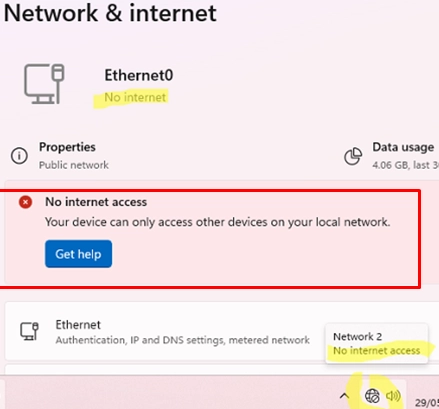
Windows features a built-in service known as the Network Connectivity Status Indicator (NCSI), which assesses the network status and determines whether the computer has Internet access. Depending on the results of these connectivity tests, Windows provides messages such as No Internet, secured for Wi-Fi or No Internet access for Ethernet connections. However, users may encounter situations where Windows reports an absence of Internet connectivity despite successful access to websites and external resources.
How NCSI Determines Internet Connectivity
To evaluate Internet access, Windows conducts several connectivity tests directed at the Microsoft website msftconnecttest.com. The NCSI component must resolve this DNS hostname and successfully retrieve a connectivity test file via an HTTP GET request. The key steps are:
- Resolve the DNS name
dns.msftncsi.com, which should return:- IPv4:
131.107.255.255 - IPv6:
fd3e:4f5a:5b81::1
- IPv4:
- Send an
HTTP GETrequest to the file connecttest.txt. - Ensure that the web server returns an
HTTP 200 (OK)response. - Verify that the retrieved file contains the text:
Microsoft Connect Test.
These checks are performed for both IPv4 and IPv6 addresses. A connection is considered valid if tests for either protocol succeed. If any checks fail, Windows will notify users that Internet connectivity is unavailable or limited.
Common Causes for Incorrect ‘No Internet’ Report
NCSI may mistakenly indicate a lack of Internet connectivity in various scenarios, including:
- A firewall, proxy server, or web filter blocking access to msftconnecttest.com.
- DNS resolution issues, such as specifying an unreachable or incorrect DNS server, or conflicting host entries in the local hosts file.
The NCSI test settings are located in the registry key HKLMSYSTEMCurrentControlSetServicesNlaSvcParametersInternet. Key options include:
- EnableActiveProbing: Activates (
1) or deactivates (0) active Internet checks. - ActiveDnsProbeHost: Default hostnames for tests, typically set to
dns.msftncsi.com. - ActiveWebProbeHost: Default Microsoft servers for HTTP tests, including
www.msftconnecttest.com.
These registry settings can be adjusted to disable NCSI checks or reroute them to an internal server, which can help manage false No Internet access alerts in controlled environments.
Disabling NCSI Active Internet Connectivity Probe
To entirely disable NCSI’s active probing, enable the Group Policy option titled Turn off Windows Network Connectivity Status Indicator active tests found in the local Group Policy Editor under:
Computer Configuration -> Administrative Templates -> System -> Internet Communication Management -> Internet Communication settings.
Once this policy is applied, Windows will cease active NCSI checks and refrain from notifying users about connectivity status based solely on these tests.
In case genuine Internet connectivity issues arise, users should perform standard network troubleshooting to identify the root cause, including examining network adapter status, IP configurations, DNS resolution, and firewall settings.