In Windows, it’s possible to pre-configure wireless (WLAN) profiles for client computers to connect automatically to Wi-Fi networks without manual intervention. This is particularly beneficial when the specific wireless network is unavailable.
Exporting and Importing WLAN Profiles
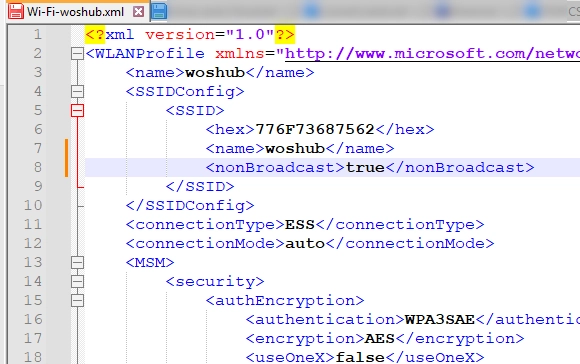
Admins can export a configured Wi-Fi profile from one device and import it onto another using the netsh command-line tool.
To export a Wi-Fi profile, list all saved profiles with:
netsh wlan show profilesTo export a specific profile (for example, named "woshub") to a given folder, run:
netsh wlan export profile name="woshub" key=clear folder="C:Backup"Here, adding key=clear exports the Wi-Fi security key in plain text. If this option is omitted, the key will be encrypted and thus unusable on other computers.
After exporting, the profile can be imported into another machine with:
netsh wlan add profile filename="C:BackupWi-Fi-woshub.xml"To check if the import is successful:
netsh wlan show profilesTo make the imported profile user-specific, add:
user=currentTo prioritize the new WLAN profile, use:
netsh wlan set profileorder name="woshub" interface="Wi-Fi" priority=1Using PowerShell for Automation
PowerShell can streamline the export and import of Wi-Fi profiles across multiple devices. To export all profiles:
$FolderPath = "$env:USERPROFILEDesktopWiFi"if (!(Test-Path $FolderPath)) { New-Item -Path $FolderPath -ItemType Directory}netsh wlan export profile folder="$FolderPath" key=clearTo import these profiles onto another system:
$WLANs = Get-ChildItem "$env:USERPROFILEDesktopWiFi" | Select-Object Nameforeach ($network in $WLANs) { netsh wlan add profile filename=$($network.Name) user=all}Deploying Profiles via Group Policy
For organizations that utilize Active Directory, Group Policy (GPO) offers a robust method to deploy WLAN profiles to multiple domain-joined computers. There are two primary methods:
- Using Logon/Startup Scripts: Create a batch file that imports the profile, and configure it as a startup script in GPO.
- Native Wireless Network Policies: This is suitable for environments using enterprise-level authentication (e.g., RADIUS) but doesn’t support pre-shared keys (PSKs).
For the startup script method, create a batch file named add_wifi_profile.bat that checks for a flag file to ensure the profile gets imported only once. After configuring, deploy it via GPO under Computer Configuration.
Conclusion
By exporting and importing WLAN profiles or deploying them through Group Policy, system administrators can significantly reduce manual configuration efforts for devices connecting to a specific wireless network. For comprehensive details and additional advanced configurations, refer to the Microsoft WLAN Profile documentation.