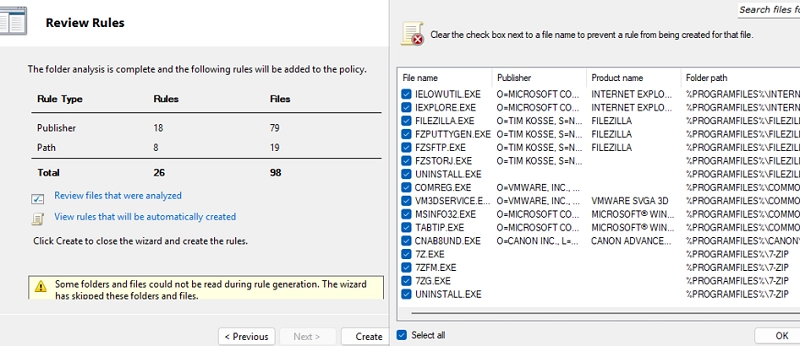
Using AppLocker security policies, system administrators can manage which applications run on Windows systems. This tool allows for specific application restrictions, enabling designated user groups to execute applications while blocking others, such as standard users.
Initially limited to the Enterprise editions, AppLocker is now accessible in Windows 10 Pro (from version 2004) and all versions of Windows 11, removing prior edition restrictions. Previously, the Software Restriction Policies (SRP) provided application launch restrictions, but SRP has been deprecated since Windows 10 version 1803 and Windows Server 2019.
To implement AppLocker in a domain environment, you can follow these steps using the Group Policy Management Console:
-
Create a New GPO: Open the GPO editor and set up a new Group Policy Object.
-
Enable Application Identity: Ensure the Application Identity service (
AppIDSvc) is enabled for the policies to apply. -
Navigate to AppLocker Rules: Expand the settings to create rules for different software categories:
- Executable Rules (e.g.,
.EXEfiles) - Windows Installer Rules (e.g.,
.MSIfiles) - Script Rules (e.g.,
.BAT,.CMD) - Packaged app Rules (Microsoft Store apps)
- Executable Rules (e.g.,
-
Create Default Rules: Start with predefined rules that allow all files located in the
Program FilesandWindowsfolders, and give full access to local Administrators. -
Set Custom Rules: Administrators can create specific rules to manage non-administrative users. For example, you may want to allow certain applications while blocking others.
-
Configure Rule Conditions: Define how the rules are enforced, based on Publisher, Path, or File hash. Environment variables can help simplify the specification of paths.
To block an application like AnyDesk.exe, create a rule with a Deny action for the user group Everyone. This ensures that regardless of the executable’s location or version, it won’t run on the system.
To apply rules to client machines, it’s critical to set them in either Audit only or Enforce rules mode. Initially applying in audit mode allows admins to review logs to understand the impact of rules without blocking applications.
To track the application of rules, admins can check the Event Viewer under:
Application and Services Logs -> Microsoft -> Windows -> AppLocker -> EXE and DLL
Monitor logs to see if applications are blocked according to the rules set and leverage PowerShell to query Event Viewer logs for a list of blocked applications.
Once testing is complete, you can enforce the rules, thus preventing unauthorized applications from launching.
For efficient rule management, consider using automated features in the GPO console or importing/exporting rules from individual machines to streamline the process.
Remember:
- Deny rules take precedence over allow rules.
- By default, all application execution is denied unless explicitly permitted.
For additional control beyond AppLocker, Windows also features Windows Defender Application Control (WDAC) for enhanced security and operational flexibility.