To remove old or unused PowerShell modules from your Windows computer, you can follow these straightforward steps. These actions may help to resolve issues like slow startup times in PowerShell or conflicts between different modules.
Listing Installed Modules
First, to see which third-party PowerShell modules are installed, you can use the following command:
Get-InstalledModuleThis command shows all third-party modules registered via the Install-Module cmdlet. For instance, if all are installed through the PSGallery repository, they will be listed here.
Uninstalling a Module
To remove a specific module, use the Uninstall-Module command followed by the module name. For example:
Uninstall-Module -Name PSWindowsUpdateIf multiple versions of the module exist, this command will remove the most recent version or will fail if multiple versions are detected. To view all installed versions of a module, use:
Get-Module pswindowsupdate -ListAvailableTo uninstall a particular version, you can specify it like this:
Uninstall-Module -Name PSWindowsUpdate -RequiredVersion 2.2.1.4 -VerboseIf you want to keep only the latest version of a module, you can run:
$moduleName = "PSWindowsUpdate"$versions = Get-InstalledModule -Name $moduleName -AllVersions | Sort-Object Version -Descending$versions | Select-Object -Skip 1 | ForEach-Object { Uninstall-Module -Name $moduleName -RequiredVersion $_.Version -Force }To remove all versions of a module, the command is:
Uninstall-Module -Name PSWindowsUpdate -AllVersionsUninstalling on a Remote Computer
You can also uninstall a module from a remote machine using Invoke-Command:
Invoke-Command -ComputerName mun-dc01 -ScriptBlock {Uninstall-Module PSWindowsUpdate -RequiredVersion 2.2.1.2 -Force -Verbose}Handling Errors During Uninstallation
Sometimes, you might encounter an error that indicates the module is in use, such as:
WARNING: The version '2.2.1.4' of module 'PSWindowsUpdate' is currently in use. Retry the operation after closing the applications.To resolve this, you need to close the PowerShell session where the module is loaded. You can list currently loaded modules with:
Get-ModuleTo unload a module from memory without exiting the console, use:
Remove-Module -Name PSWindowsUpdateAfter this, try removing the module again with:
Uninstall-Module -Name PSWindowsUpdate -ForceBypassing Automatic Module Loading
If a module loads automatically at the start of a PowerShell session, you can bypass this by launching PowerShell with the -NoProfile option:
Powershell.exe -NoProfile -Command "Uninstall-Module ImportExcel"Viewing All Available Modules
To check all modules on your computer, including those manually installed, run:
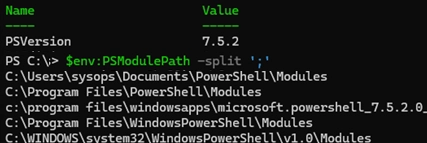
Get-Module -ListAvailable | Select-Object Name, Version, PathThis will show you where the module files are located. Standard paths for installed modules include:
C:Users%username%DocumentsWindowsPowerShellModulesC:Program FilesWindowsPowerShellModulesC:Windowssystem32WindowsPowerShellv1.0ModulesFor PowerShell Core 7.x, you’ll have additional paths:
C:Program FilesPowerShellModulesCleaning Up Residual Files
Even after uninstalling a module, some files may remain. You can manually delete these leftover files. A simple PowerShell script can do this:
$Module = Get-Module ImportExcel -ListAvailableUninstall-Module $Module.Name -VerboseRemove-Item $Module.ModuleBase -Recurse -ForceWith these steps, you should be able to effectively manage and remove any old or unused PowerShell modules from your system.