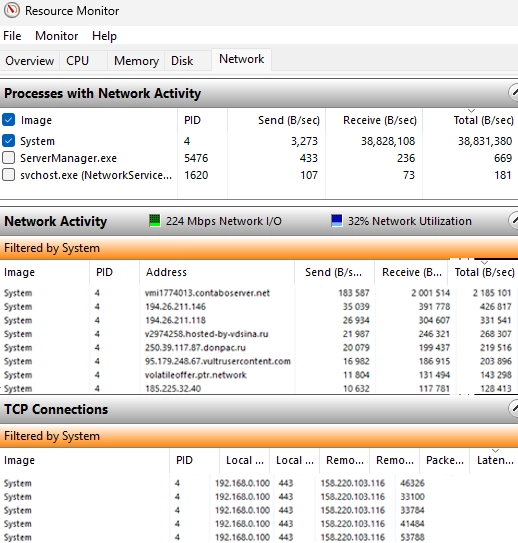
In this article, we explore how to secure Windows Server against DDoS and brute-force attacks using the IPBan tool. The goal is to monitor failed logons and suspicious traffic, blocking the offending IP addresses through Windows Firewall rules. With IPBan, we can establish a straightforward host protection system without relying on external security applications.
How to Install IPBan on Windows Server
To block IP addresses perceived as threats, we can utilize IPBan to parse web service logs, triggering actions based on thresholds of failed requests. This process employs regular expressions to extract malicious IP information and implement blocking measures.
IPBan can be downloaded from its GitHub repository. To install it on Windows, use this PowerShell command:
$ProgressPreference = 'SilentlyContinue'; [Net.ServicePointManager]::SecurityProtocol = [Net.SecurityProtocolType]::Tls12; iex ((New-Object System.Net.WebClient).DownloadString ('https://raw.githubusercontent.com/DigitalRuby/IPBan/master/IPBanCore/Windows/Scripts/install_latest.ps1'))This command installs IPBan, setting it up as a Windows service with customizable settings in the ipban.config file. This XML file includes sections for defining log files to monitor, patterns for blocking suspicious IPs, and overall service configurations.
Example configurations in ipban.config:
- LogFilesToParse: Defines which log files to monitor and the patterns to detect unwanted events.
- ExpressionsToBlock: Details which suspicious events to watch for in Windows Event logs.
- appSettings: Basic settings such as ban duration and IP whitelists.
Blocking Malicious IP Addresses in Windows Firewall
During a recent DDoS attack targeting an IIS website hosted on Windows Server, I noticed an abnormal increase in log file sizes within C:inetpublogsLogFilesW3SVC1. To optimize parsing, I changed the IIS logging settings to create new log files based on file size rather than daily intervals.
Analyzing the IIS logs revealed numerous requests leading to HTTP 405 (Method Not Allowed) errors. I implemented a parsing rule in IPBan for this specific response code:
<LogFile><Source>IIS405</Source><PathAndMask>C:/inetpub/logs/LogFiles/W3SVC1/*.log</PathAndMask><FailedLoginRegex><![CDATA[^(?<timestamp_utc>d{4}-d{2}-d{2}s+d{2}:d{2}:d{2})s+S+s+S+s+S+s-sd+s-s(?<ipaddress>S+).*?s405s+d+s+d+s+d+$]]></FailedLoginRegex><PlatformRegex>Windows</PlatformRegex><PingInterval>5000</PingInterval><MaxFileSize>100000000</MaxFileSize><FailedLoginThreshold>5</FailedLoginThreshold><MinimumTimeBetweenFailedLoginAttempts>00:00:5</MinimumTimeBetweenFailedLoginAttempts></LogFile>Confirming Bot Attacks
I used PowerShell to confirm that the HTTP requests were from specific IPs leading to repeated errors. Consequently, IPBan established Windows Firewall rules to block offending addresses. By utilizing this tool, we blocked around 3,000 IP addresses linked to DDoS activity in under a day, resulting in a healthy return to normal server load.
Furthermore, additional rules were created to capture 404 errors from bots attempting to access non-existent pages. With IPBan’s intervention, we can swiftly assess and mitigate threats based on unusual traffic patterns.
By following these steps and leveraging IPBan, Windows Server administrators can effectively shield their servers from DDoS attacks and manage suspicious traffic patterns, maintaining the integrity of their web services.