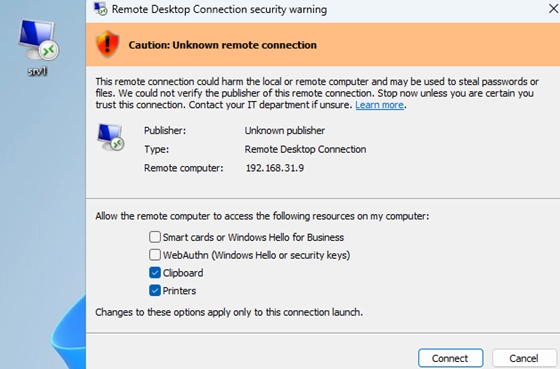
The recent security updates for Windows 11 and Windows 10 have altered the way Remote Desktop Protocol (RDP) files are handled. Following the installation of the April 2026 updates, users are now met with a notification upon first opening an RDP file, outlining the associated risks. This warning prompts users to approve the connection and specify which local resources to redirect during the remote session.
Latest Microsoft Updates Add Warnings for RDP Files
Updates such as KB5083769 for Windows 11 and KB5082200 for Windows 10 (part of the Extended Security Updates program) now enforce the following default protections when an RDP file is accessed:
- A warning detailing the remote system is displayed before establishing a connection.
- Local resource redirection is disabled by default until the user explicitly allows it.
This change is part of Microsoft’s effort to mitigate the risk of phishing attacks that exploit RDP files. Attackers often send users malicious RDP files that connect to an attacker-controlled server, compromising local resources like drives and clipboards.
The initial notification upon opening an RDP file states:
Opening Remote Desktop ConnectionYou are opening an RDP file which will establish a connection to another computer. Connecting to any remote system can expose your PC and data to security risks. Learn more.Users must check the box stating agreement to allow RDP files to open.
Following the initial notification, if the RDP file is not digitally signed or cannot be verified, users will see a more severe warning indicating that the connection might compromise their computer:
Remote Desktop Connection Security warningCaution: Unknown remote connectionThis remote connection could harm the local or remote computer and may be used to steal passwords or files. We could not verify the publisher of this remote connection. Stop now unless you are certain you trust this connection.Publisher: Unknown publisherFor signed RDP files, the warning will include verification details about the publisher, but users are still required to approve the connection and select local resources.
Notably, these new security measures apply exclusively to RDP files opened from saved locations. Users manually entering details into the mstsc.exe client will not encounter these warnings.
How to Disable the Remote Desktop Connection Security Warning
To temporarily disable these new security measures (at the cost of security), administrators can modify the registry by adding the RedirectionWarningDialogVersion parameter. This can be done with the following command:
REG ADD "HKLMSoftwarePoliciesMicrosoftWindows NTTerminal ServicesClient" /v RedirectionWarningDialogVersion /t REG_DWORD /d "1" /F
Additionally, to bypass the first security warning, users can set:
REG ADD "HKEY_CURRENT_USERSoftwareMicrosoftTerminal Server Client" /v RdpLaunchConsentAccepted /t REG_DWORD /d "1" /F
How to Sign an RDP File Using RDPSign.exe
To enhance security, it’s advisable to sign RDP files with a trusted digital signature. An appropriate code-signing certificate is necessary for this. Users can create a self-signed certificate through PowerShell:
New-SelfSignedCertificate -Subject "WOSHUB Cert for Code Signing” -Type CodeSigningCert -CertStoreLocation cert:LocalMachineMy
Next, use RDPSign.exe to sign the RDP file:
rdpsign.exe /v /sha256 <certificate thumbprint> .Desktopmy_rdp_app.rdp
For the system to trust this certificate, it must be placed in the trusted root certification store.
Conclusion
These updates underscore Microsoft’s commitment to bolstering security protocols surrounding RDP file usage. By being mindful of the changes and implementing secure practices, users can better protect their data while using Remote Desktop connections. For more details on securing RDP connections, you can read more about SSL/TLS certificates.