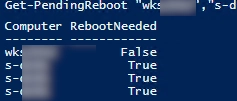
After installing certain patches or security updates on Windows systems, a restart may be necessary for them to take effect. However, users may delay rebooting their computers, or automatic reboots might be disabled on servers or workstations using Group Policy settings. This situation can lead to numerous computers in large enterprise networks remaining stuck in the PendingReboot status for extended periods, which can create operational difficulties.
To identify computers on the network that are waiting for a reboot after updates, you can utilize the PendingReboot module from the PowerShell Gallery. First, install this module using the command:
Install-Module -Name PendingRebootThen, check if your computer requires a reboot by running:
Test-PendingRebootIf the output indicates that a reboot is pending, you can gain further insight, including the reason for the pending reboot, by using the -Detailed option:
Test-PendingReboot -DetailedFor administrators needing to check remote computers, you can use the Invoke-Command cmdlet, which requires PowerShell Remoting to be enabled and configured:
Invoke-Command -ComputerName m-dc01 -ScriptBlock {Test-PendingReboot}If you prefer not to install additional PowerShell modules, you can directly check the registry keys associated with pending reboots. The presence of entries in the following registry keys indicates that a restart is necessary:
HKLMSOFTWAREMicrosoftWindowsCurrentVersionComponent Based ServicingRebootPendingHKLMSOFTWAREMicrosoftWindowsCurrentVersionWindowsUpdateAuto UpdateRebootRequiredHKLMSYSTEMCurrentControlSetControlSession ManagerPendingFileRenameOperations
To check for a pending reboot entry, you can use:
Get-Item 'HKLM:SOFTWAREMicrosoftWindowsCurrentVersionWindowsUpdateAuto UpdateRebootRequired' -ErrorAction SilentlyContinueIf this key is present, it signifies that a reboot is required.
Furthermore, you can simplify the check process by creating a PowerShell function that verifies the relevant registry keys for multiple computers. This allows you to monitor reboot statuses effectively across your network.
If issues arise where Windows continuously prompts for a restart following a failed update installation, manual intervention may be necessary to cancel the pending update and break the restart loop.
For more insights, you can refer to the related guides on managing Windows updates and troubleshooting reboot issues.