Updating UEFI Secure Boot Certificates on Windows Devices
Secure Boot is a UEFI security feature designed to prevent the loading of unsigned or malicious code before the operating system starts. The Microsoft Secure Boot certificates issued in 2011 are set to begin expiring in June 2026. This expiration could lead to the disabling of Secure Boot protection on affected systems, increasing susceptibility to bootkit attacks and other pre-OS threats.
In 2025, Microsoft will start distributing updates to replace the expiring UEFI Secure Boot certificates. This guide provides instructions on how to manually update the Secure Boot certificate and Windows bootloader signed by the new Windows UEFI CA 2023 certificate.
Why Update Secure Boot Certificates?
Microsoft is delivering new Secure Boot certificates and a newly signed bootloader to Windows 11 devices. For devices that regularly receive Windows updates, these certificates should already be available, but they may not be written to the UEFI firmware yet.
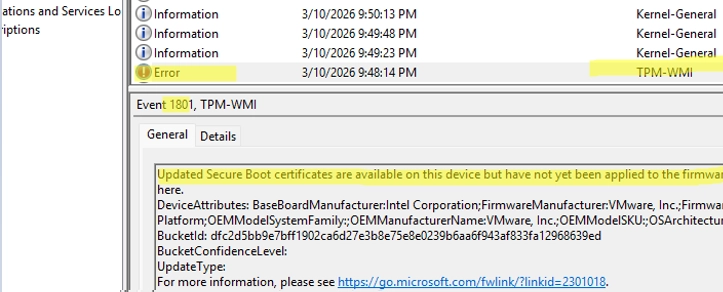
You can verify if the new certificates are installed using PowerShell. If they are not yet applied, you may find a TPM-WMI error in your System log indicating that updated certificates are available but not yet installed.
Automatic Updates
The new certificates will be automatically delivered to computers running supported Windows versions with UEFI Secure Boot enabled, including:
- Windows 11
- Windows 10 LTSC editions
- Windows Server versions (2016, 2019, 2022, 2025)
If your system does not receive the update before the 2011 certificates expire, it will not prevent Windows from booting, but the Secure Boot mechanism will cease to function, leaving your system exposed to potential risks.
Steps to Manually Update Secure Boot Certificates
-
Check Current Certificate Installation:Use the following PowerShell command to check for the new UEFI Secure Boot certificates:
[System.Text.Encoding]::ASCII.GetString((Get-SecureBootUEFI -Name db).Bytes) -match "Windows UEFI CA 2023" -
Force Update if Necessary:If you need to manually initiate an update, suspend any BitLocker protection and ensure you have access to your recovery key. Then, set the AvailableUpdates parameter:
Set-ItemProperty -Path ‘HKLM:SYSTEMCurrentControlSetControlSecureBoot’ -Name ‘AvailableUpdates’ -Value 0x5944 -
Run the Scheduled Task:Execute the scheduled task to trigger the update:
Start-ScheduledTask -TaskName ‘MicrosoftWindowsPISecure-Boot-Update’ -
Monitor Update Progress:Use the Event Viewer to check the status of the update. Look for event ID 1800, which indicates a reboot is required to finalize the Secure Boot update.
-
Final Verification:After the update, verify in the registry that UEFICA2023Status has been set to Updated:
Get-ItemProperty -Path HKLM:SYSTEMCurrentControlSetControlSecureBootServicing -Name UEFICA2023Status | Select-Object UEFICA2023Status
Troubleshooting Common Errors
If you encounter an error regarding "Invalid access to memory location," it may be due to UEFI firmware rejecting the new certificates. Consult the vendor’s documentation for guidance on necessary firmware updates or details on managing certificates manually.
For further reading and guidance, you can refer to resources on Microsoft’s official support pages.
By following these steps, you’ll ensure your Windows device maintains protection against potential vulnerabilities associated with an expired Secure Boot certificate.