In some situations, programs on Windows cannot be uninstalled using the usual methods, such as the Settings app or the classic Programs and Features panel. This issue often arises due to a damaged installer, missing files, or incorrect registry entries. This guide provides effective methods to forcefully uninstall any problematic program on Windows.
Uninstalling an App with a Corrupted or Missing MSI Installer
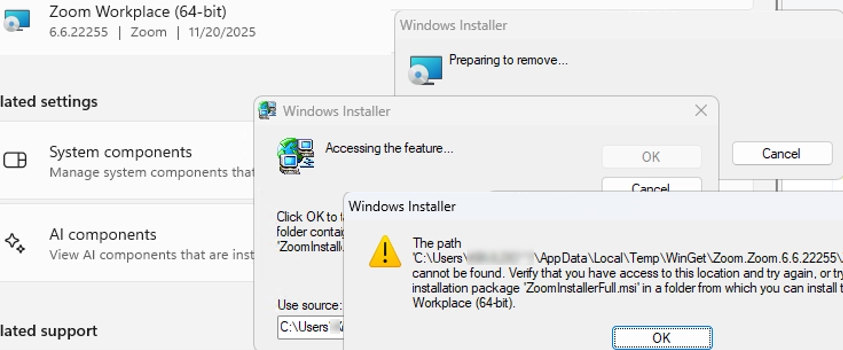
Take the case of attempting to uninstall the Zoom client, which was installed via an MSI installer. When trying to remove it, a Windows Installer error might emerge, indicating that the MSI installation file cannot be found. This can result from the installation files being corrupt or deleted.
The installation source for an application is typically stored in the %windir%Installer directory. You can use the following PowerShell script to list installed MSI applications and their corresponding source files:
$installer = New-Object -ComObject WindowsInstaller.Installer$products = $installer.ProductsEx("", "", 7)$result = foreach ($p in $products) { [pscustomobject]@{ ProductName = $p.InstallProperty("ProductName") ProductCode = $p.ProductCode() LocalPackage = $p.InstallProperty("LocalPackage") }}$result | Sort-Object ProductName | Format-Table -AutoSizeThe LocalPackage property contains the full path to the cached MSI installation file. It’s crucial never to manually delete files from the %windir%Installer folder as it holds necessary installation packages and related files.
Registry entries for applications are stored depending on whether the application is 32-bit or 64-bit, as well as its installation scope (for all users or only the current user). If the registry entry for an application is corrupted or missing, it may not appear in the installed apps list.
To manually remove the program, locate its MSI package in the %windir%Installer directory and run the uninstall command through Command Prompt:
msiexec /x "C:WINDOWSInstallerfile_name.msi"If the MSI file is also unavailable, check the HKLMsoftwareclassesinstallerproducts registry key for details about the software source file. The LastUsedSource and PackageName properties can direct you to the needed MSI file.
Using the Microsoft Program Install and Uninstall Troubleshooter
If you encounter an error such as "Error 1722: There is a problem with this Windows installer package," the official Microsoft Program Install and Uninstall Troubleshooter may help. This tool can resolve issues related to missing registry entries or corrupted installers.
You can download the troubleshooter from Microsoft’s support page and run it by navigating to Settings > Troubleshoot > Other Troubleshooters in Windows 11.
- Run the troubleshooter, and it will present a list of installed apps.
- Select the program you want to remove, and it will attempt to clean up any issues related to the installation.
Further Steps if Problems Persist
- Reinstall the Program: Sometimes, downloading and running the MSI installer for the same program version can allow for a successful uninstall.
- Terminate Running Processes: Ensure that any associated processes are closed before attempting to uninstall.
- Safe Mode: Boot into Safe Mode, allow the Windows Installer to function, and try removing the application again.
- Third-Party Tools: Consider using tools like GeekUninstaller or RevoUninstaller for a more thorough removal, but proceed with caution regarding potential risks.
These methods should enable you to deal with stubborn applications effectively.