In Windows, per-user services are specialized services generated for each user during their logon and removed when they log off. They are designed to handle personalized tasks such as search indexing, notifications, and data synchronization, operating within the user account context rather than the LocalSystem context. This concept has been available since Windows 10 and Windows Server 2016.
How to Find All Per-User Services in Windows
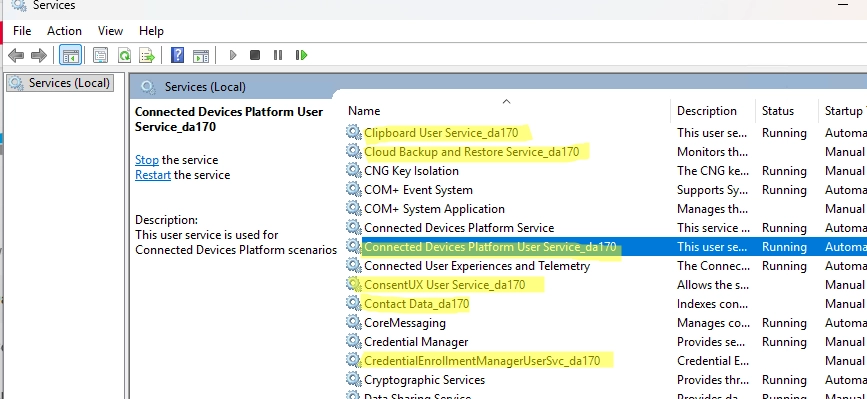
To see a list of per-user services on a Windows machine, you can use the Services Management snap-in (services.msc). The service names often include a unique identifier (known as LUID) at the end. For instance, services like Clipboard User Service_da170 and ConsentUX User Service_da170 are examples of this naming convention.
Using PowerShell, you can filter and list these services based on the SERVICE_USER_SERVICE type. The command looks like this:
Get-Service | Where-Object { ($_.ServiceType -band 64) -eq 64 } | Select Name, Status, ServiceType, DisplayNameWindows creates personal service templates in the registry at HKLMSYSTEMCurrentControlSetServices when a user logs in. To list these templates, use the following PowerShell command:
Get-ChildItem "HKLM:SYSTEMCurrentControlSetServices" | ForEach-Object { Get-ItemProperty $_.pspath } | Where-Object {$_.Type -eq 80 -or $_.Type -eq 96} | Format-Table PSChildName, Type, UserServiceFlagsHere’s a brief overview of some default per-user services in Windows 11 (25H2):
| Service Name | Display Name | Startup Type | Can be Disabled | Description |
|---|---|---|---|---|
| AarSvc | Agent Activation Runtime | Manual | ❌ Do NOT disable | Launches app background agents |
| BluetoothUserService | Bluetooth User Support Service | Manual | 🟢 Safe to disable | Provides Bluetooth user-level support |
| CaptureService | Capture Service | Manual | 🟢 Safe to disable | Handles screen and video capturing |
| cbdhsvc | Clipboard User Service | Manual | 🟢 Safe to disable | Manages shared clipboard and sync |
| ConsentUxUserSvc | ConsentUX User Service | Manual | 🟢 Safe to disable | Handles app consent dialogs |
How to Disable or Remove Per-User Services in Windows
Most per-user services are initially disabled and only activate when needed. If specific Windows features are not required, you can disable the corresponding per-user services. This practice is particularly important for terminal servers and virtual desktops to maintain performance.
For instance, you might want to disable services like DevicesFlowUserSvc for WiFi displays or BcastDVRUserService for game recording. To do this, access the registry key HKLMSystemCurrentControlSetServicesBcastDVRUserService, create a REG_DWORD parameter named UserServiceFlags, and set its value to 0. You can accomplish this either manually or using PowerShell:
New-ItemProperty -Path HKLM:SystemCurrentControlSetServicesBcastDVRUserService -Name UserServiceFlags -PropertyType DWord -Value 0 -ForceAfter restarting the computer, the specified dynamic per-user services will not be created.
In environments with many users, such as an RDS terminal farm, the proliferation of per-user services can negatively affect server performance. Disabling unused services can alleviate this issue.
Some services disabled in a Windows Server 2022 RDS template include:
- CaptureService
- ConsentUxUserSvc
- DevicePickerUserSvc
- DevicesFlowUserSvc
- UserDataSvc
Using Group Policy to set the UserServiceFlags value aids in managing these services effectively (learn how to create or modify registry items via Group Policy).
It’s essential to reference Microsoft’s supported list when disabling per-user services, ensuring that changes are made carefully and validated in your specific environment.