Occasionally, users encounter issues with the Start Menu or taskbar on RDS hosts utilizing Windows Server 2022 or 2019. Specifically, when a user clicks the Start button in a terminal session, the menu may fail to open, or the RDP session might freeze, rendering it unresponsive.
The Start Menu and user interactions are driven by two key processes: Explorer.exe and StartMenuExperienceHost.exe. A quick fix for a one-time issue is to restart these processes through the Task Manager.
However, a persistent malfunction with the Start Menu in RDS farm hosts is often linked to multiple DCOM Server errors logged in Event Viewer with Event ID 10001, which typically relate to Microsoft Store apps.
To troubleshoot the unresponsive Start Menu in user sessions, you can attempt to re-register the Microsoft Store app package that is suspected to be causing the issue. Open the PowerShell console using the Win+X shortcut and execute:
Add-AppxPackage -Register "C:WindowsSystemAppsShellExperienceHost_cw5n1h2txyewyAppxManifest.xml" -DisableDevelopmentModeAlternatively, to re-register all Microsoft Store apps at once, run:
Get-AppXPackage | Foreach {Add-AppxPackage -DisableDevelopmentMode -Register "$($_.InstallLocation)AppXManifest.xml"}If these actions do not resolve the problem, the contents of certain registry keys should be examined:
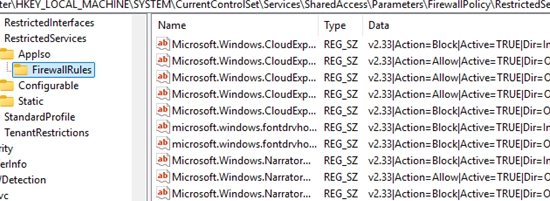
HKLMSYSTEMCurrentControlSetServicesSharedAccessParametersFirewallPolicyRestrictedServicesAppIsoFirewallRulesHKLMSYSTEMCurrentControlSetServicesSharedAccessParametersFirewallPolicyFirewallRules
In past experiences, I found an excessive number of Windows Defender Firewall rules created for Microsoft Store apps each time a user logged in and out, without being automatically cleared. This buildup can lead to the StartMenuExperienceHost process freezing, ultimately impeding Start menu functionality.
Removing these unnecessary firewall rules can improve performance for RDS and RemoteApp sessions.
To create a backup of your current firewall policy rules before making changes, use:
reg export "HKLMSYSTEMCurrentControlSetServicesSharedAccessParametersFirewallPolicy" C:Backup_Firewall_Policy_rules.regSince PowerShell cmdlets won’t manage firewall rules in the AppIso registry key, you will need to remove them directly from the registry. To clear the redundant rules, execute the following commands:
reg delete HKLMSYSTEMCurrentControlSetServicesSharedAccessParametersFirewallPolicyRestrictedServicesConfigurableSystem /va /freg delete HKLMSYSTEMCurrentControlSetServicesSharedAccessParametersFirewallPolicyRestrictedServicesAppIsoFirewallRules /va /fBe cautious when checking the registry key HKLMSYSTEMCurrentControlSetServicesSharedAccessParametersFirewallPolicyFirewallRules, as this key contains crucial Windows Firewall rules, including defaults. Completely deleting items here could result in losing remote access to the host, including its Remote Desktop functionality. Prior to any deletions, ensure a Group Policy Object (GPO) with essential Windows Firewall rules is established to maintain access.
To restore default Windows Firewall settings, you can use the command:
(New-Object -ComObject HNetCfg.FwPolicy2).RestoreLocalFirewallDefaults()To automate the clearing of firewall rules for Microsoft Store apps with each user session, create the DeleteUserAppContainersOnLogoff registry parameter and assign it a value of 1:
New-ItemProperty -Path "HKLM:SYSTEMCurrentControlSetServicesSharedAccessParametersFirewallPolicy" -Type DWord -Name DeleteUserAppContainersOnLogoff -Value 1Now, when a user logs off, their app-related firewall rules will be removed automatically.
Conclude by re-registering the APPX packages on the server with:
Get-AppXPackage -AllUsers | Foreach {Add-AppxPackage -DisableDevelopmentMode -Register “$($_.InstallLocation)AppXManifest.xml”}