When a computer is joined to a domain using the System Properties GUI, its account is created in the default Computers container. This container is not an Organizational Unit (OU), meaning that it does not support Group Policy assignments, relying instead on root domain Group Policies like the Default Domain Policy. This setup can lead to security risks, as newly added computers may lack the necessary security policies until they are manually moved to appropriate OUs.
To change the default OU for new computers, a domain admin can utilize the redircmp.exe command. First, check the current default container for new computers by executing:
Get-ADDomain | select ComputersContainerThis returns the current default container for newly created computer objects. To redirect this container to a specified OU, provide the distinguished name in the following format:
redircmp.exe "OU=Workstations,OU=LA,DC=woshub,DC=com"Verify that the default container has changed by rerunning the earlier command.
Similarly, the default container for user accounts can be checked with:
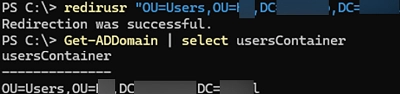
Get-ADDomain | select usersContainerIf a new user is created using the New-ADUser cmdlet without specifying a target OU, the account ends up in the default CN=Users container. To change the default OU for new user accounts, you can use the redirusr.exe command:
redirusr "OU=Users,OU=LA,DC=woshub,DC=com"Both of these commands effectively change the target OUs for new computer and user accounts. However, previously created Active Directory objects will not move automatically and must be transferred manually using tools like the Active Directory Users and Computers (ADUC) snap-in or PowerShell.