Monitoring a specific folder or file for changes can be efficiently achieved using PowerShell with the built-in .NET FileSystemWatcher class. This approach allows for real-time detection of changes such as creation, deletion, renaming, or modification of files within a specified directory. By utilizing the FileSystemWatcher, you can automate actions in response to these events, such as logging information or executing custom scripts.
To set up FileSystemWatcher, start by creating an instance of the class:
$fs_watch = New-Object System.IO.FileSystemWatcherNext, specify the directory you wish to monitor:
$fs_watch.Path = "C:RepoConfig"If you want to include subdirectories in your monitoring, set the following property:
$fs_watch.IncludeSubdirectories = $trueThen, enable event generation for filesystem changes:
$fs_watch.EnableRaisingEvents = $trueDefine the action to be executed when changes occur in the monitored folder:
$reg_action = { $changeType = $Event.SourceEventArgs.ChangeType $path = $Event.SourceEventArgs.FullPath "$(Get-Date -Format 'yyyy-MM-dd HH:mm:ss') | $changeType | $path" | Out-File -FilePath "$env:USERPROFILEwatch.log" -Append}Subscribe to the event types you want to track—specifically, Created, Changed, Deleted, and Renamed:
Register-ObjectEvent $fs_watch Created -Action $reg_action -SourceIdentifier FSCreateRegister-ObjectEvent $fs_watch Changed -Action $reg_action -SourceIdentifier FSChangeRegister-ObjectEvent $fs_watch Deleted -Action $reg_action -SourceIdentifier FSDeleteRegister-ObjectEvent $fs_watch Renamed -Action $reg_action -SourceIdentifier FSRenameThe FileSystemWatcher will operate as long as the PowerShell.exe process is active. However, if you run the code through a script file, consider implementing an infinite wait at the end:
while ($true) { sleep 10 }This construct is particularly useful when the monitoring script is executed via Task Scheduler or set up as a Windows service.
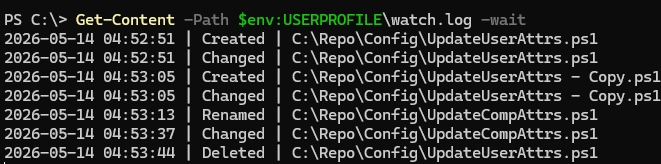
To view the log file with real-time updates, execute:
Get-Content -Path $env:USERPROFILEwatch.log -waitIf you need to unregister from the events, you can use:
Unregister-Event -SourceIdentifier FSCreateUnregister-Event -SourceIdentifier FSChangeUnregister-Event -SourceIdentifier FSDeleteUnregister-Event -SourceIdentifier FSRenameIf you’re interested in tracking only specific file types, apply a filter at the start of the script:
$filter = "*.ini"$fs_watch.Filter = $filterYou can also specify the types of changes you wish to monitor using the NotifyFilter property:
$fs_watch.NotifyFilter = [System.IO.NotifyFilters]::FileName -bor [System.IO.NotifyFilters]::Size -bor [System.IO.NotifyFilters]::SecurityFor more complex event handling, such as logging old and new file names during a renaming event, customize the action accordingly:
Register-ObjectEvent $fs_watch Renamed -SourceIdentifier FSRename -Action { $details = $Event.SourceEventArgs $timeStamp = Get-Date -Format 'yyyy-MM-dd HH:mm:ss' $logMessage = "$timeStamp | Renamed | From: $($details.OldFullPath) To: $($details.FullPath)" $logMessage | Out-File -FilePath $env:USERPROFILEwatch.log -Append}To ensure that events are not lost, especially in scenarios with a high volume of changes, you may consider increasing the internal buffer size:
$fs_watch.InternalBufferSize = 65536Alternatively, handling actions in a separate background process using the Start-Job cmdlet is recommended for isolating execution from the watcher.
In essence, this guide illustrates how to implement a straightforward file system monitoring solution using PowerShell to comprehensively track file events and perform automated responses accordingly.